
Desktop app#
The PyAEDT MCP desktop app provides a Windows interface for installing and updating the managed MCP environment, running the local HTTP server, and configuring supported coding-agent profiles.
First launch#
When the managed environment has not been installed, the app opens a setup
guide. The managed environment is the virtual environment that the PyAEDT
MCP desktop app creates for installing and running PyAEDT MCP.
By default, this environment is available in %APPDATA%\\.pyaedt_mcp.
On the Server tab, choose an install source and MCP version, then
select Install MCP. After installation, the app enables Start Server.
Offline installation prompts for a wheelhouse ZIP for each install or update, without
querying package indexes. The app verifies that the ZIP targets its bundled Python 3.13
runtime before installation. Turn this mode on or off in the Installation section
of the Settings tab; the choice is retained in %APPDATA%\\.pyaedt_mcp\\settings.yaml.
Git branch installation requires online mode.
To reuse an existing local Python environment instead of creating one, select
Use local environment in the first-launch guide. Choose the environment’s
root folder (containing Scripts\python.exe for a virtual environment, or
python.exe for a Conda environment), not its Scripts folder. If PyAEDT
MCP is already installed there, the app enables Start Server immediately.
Otherwise, Install MCP installs it into that environment without creating
a new one.
In Settings, turn on Custom environment to select a folder, or use the
folder selector to change it. Turning the toggle off restores the default
%APPDATA%\.pyaedt_mcp\.venv environment without deleting or modifying the
custom environment. The selection is retained across launches. Stop the server
and wait for any installation or update to finish before switching environments.
Install and update actions modify the selected environment. After switching,
reinstall any Stdio coding-agent profiles so they use the newly selected
environment.
Use the Update MCP button to update an existing managed environment. Choose Git branch as the install source when testing a repository branch instead of a published release.
Building the Windows executable#
From a development checkout, install the desktop dependency group and run
.\scripts\build_windows_installer.ps1 -ExecutableOnly. This command checks
that the desktop GUI imports and its tray image loads before packaging.
Server tab#
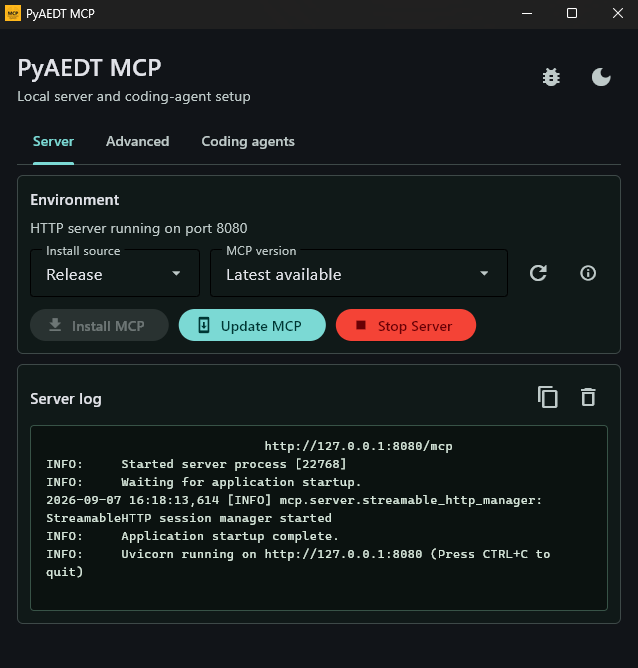
Use the Server tab to install or update PyAEDT MCP and to start its local HTTP transport. The Server log window displays standard output and errors from the MCP server that the desktop app launches. Use it to confirm startup, inspect debug output, and diagnose a server that exits unexpectedly.
System tray#
Warning
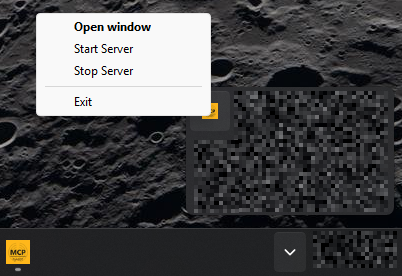
Closing the app window keeps PyAEDT MCP running in the Windows system tray. To exit the desktop app completely, right-click the PyAEDT MCP tray icon and select Exit.
The tray menu provides the following actions:
Open window restores the control panel after it has been hidden.
Start Server starts the local HTTP server with the current settings on the Advanced tab.
Stop Server stops the HTTP server that was started by the desktop app.
Exit stops the local HTTP server, removes the tray icon, and closes the desktop app.
Settings are retained while the window is hidden. Closing the window does not stop a running server; use Stop Server or Exit from the tray menu when the server is no longer needed.
Advanced tab#
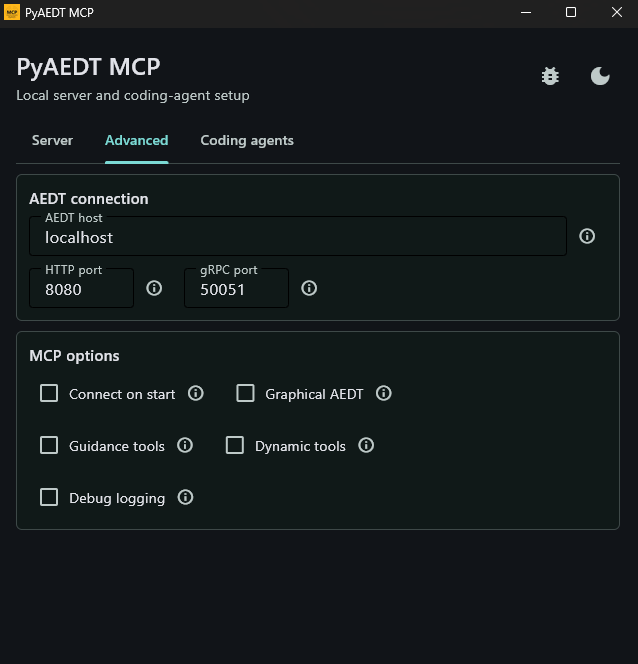
The desktop app starts the server with --transport http and
--http-host 127.0.0.1. Use AEDT connection and MCP options to
configure the remaining server arguments:
HTTP port sets
--http-port. The default is8080.- AEDT host and gRPC port provide the values for
--machineand --portwhen Connect on start is selected.
- AEDT host and gRPC port provide the values for
- Connect on start adds
--connect. The server then connects to the configured AEDT session at startup and locks that connection for its lifetime.
- Connect on start adds
- Graphical AEDT adds
--graphical. Leave it unselected to use the default non-graphical AEDT mode.
- Graphical AEDT adds
- Guidance tools adds
--include-contextto register the optional AEDT and PyAEDT workflow guidance tools.
- Guidance tools adds
- Dynamic tools adds
--dynamic-tool-discoveryto hide AEDT-only tools until the server has an AEDT connection.
- Dynamic tools adds
Debug logging sets
FASTMCP_LOG_LEVEL=DEBUGfor the server process.
For the full list of command-line server options, including --version and
the HTTP CORS settings that are not exposed by the desktop app, see
Advanced configuration.
Coding agents tab#
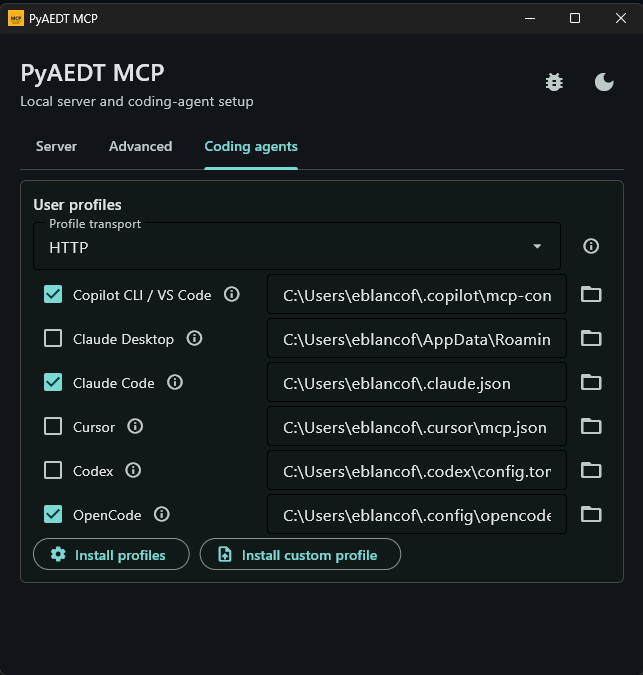
Select the coding-agent profiles to configure, choose Stdio or HTTP as the profile transport, and confirm the configuration path for each agent. Select Install profiles to write the selected configuration files. Use HTTP only after starting the local HTTP server.